
How to Free Up Space on Your PC Without Deleting What Matters
Reclaim gigabytes on your PC using Storage Sense, Disk Cleanup and a bit of sorting — without deleting your photos, documents or anything else you care about.
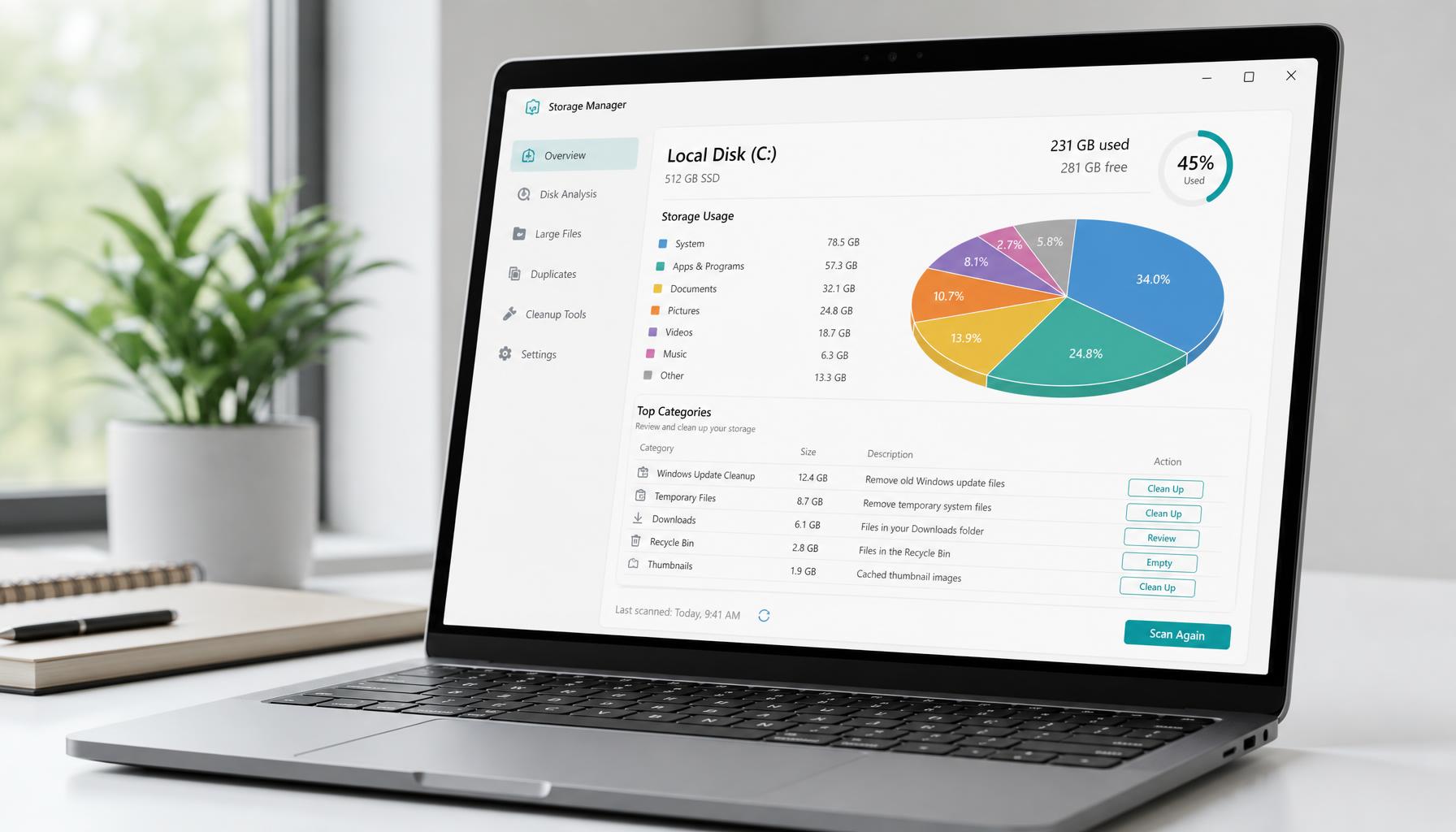
Running low on storage space is one of the most common reasons a laptop starts to slow down or display warning messages. It can also stop Windows updates from installing properly, since they need a certain amount of free space to work with. The good news is that most of the space taking up your hard drive isn’t made up of files you actually care about. It's temporary files, system clutter, and leftovers from updates and old programs. With a bit of housekeeping, you can free up space without touching your photos, documents, or anything else you want to preserve.
Check How Much Space You Actually Have
Before you start deleting anything, it's worth seeing exactly where your storage space is going. Open the Settings app and head to System, then Storage. This gives you a breakdown of what’s using space on your hard drive, split into categories like apps, temporary files, and documents. It’s a much clearer starting point than guessing, and it means you can target the areas taking up the most room first rather than deleting things at random.
Use Storage Sense to Clean Up Automatically
Storage Sense is a built-in Windows tool that clears out clutter for you, on a schedule you control. It's one of the easiest ways to keep your PC tidy without having to remember to do it manually.
- Open the Settings app and go to System, then Storage
- Turn on Storage Sense if it isn’t already switched on
- Select “Configure Storage Sense or run it now” to choose what gets cleaned up
- Tick the options to delete temporary files and empty the Recycle Bin automatically
- Set how often you’d like it to run, such as weekly or monthly
Once it's set up, Storage Sense quietly handles a lot of the day-to-day clutter in the background, which makes freeing up disk space far less of a chore.
Run Disk Cleanup for a Deeper Clean
If Storage Sense hasn’t been running for a while, or you want an immediate result, Disk Cleanup is worth using as well. It's an older Windows tool, but it still may be effective for clearing out system file buildup over time.
- Open File Explorer and right-click your main drive, usually labelled C:
- Select Properties, then choose Disk Cleanup
- Tick the categories you want to clear, such as temporary files, thumbnails, and Recycle Bin contents
- Select “Clean up system files” for a more thorough scan, which also picks up leftover files from old Windows updates
- Confirm and let it run
This step alone can sometimes recover several gigabytes, particularly on a laptop that’s never had it run before, since old Windows updates in particular can leave behind large files that serve no purpose once installed. It's worth running Disk Cleanup every few months, even if storage isn’t causing problems yet, simply because these files build up quietly in the background without ever announcing themselves.
Find What's Actually Taking Up The Most Space
Sometimes the biggest space hogs aren’t hidden system files at all, but ordinary files you’ve simply forgotten about. Open File Explorer, navigate to your main folders such as Documents, Downloads, and Pictures, and sort by size rather than name or date. This puts your largest files at the top of the list, making it much easier to see what’s actually worth keeping.
The Downloads folder in particular is worth checking. It's common for it to quietly fill up with installer files, old attachments, and duplicates you downloaded once and never opened again. Select files you no longer need and clear them out. It’s a five-minute job that often frees up a surprising amount of space.
Empty the Recycle Bin
It's an obvious one, but easy to forget. Deleted files sit in the Recycle Bin taking up exactly the same amount of space they did before, until you empty it. If you’ve been clearing out files as part of a wider clean-up, make sure to empty the Recycle Bin afterwards rather than assuming the space has already been freed.
Move Files to External Storage Instead of Deleting
Not everything needs to be deleted to free up room. If you’ve got large folders of photos, videos, or old projects you’re not ready to part with, moving them to external storage is often the better option. Connect an external hard drive, or use a cloud storage service, and transfer anything you don’t need regular access to. Your files stay safe, just not sitting on your PC’s main drive, and you get the storage space back without giving anything up.
External hard drives are inexpensive relative to how much space they offer, and for most people, moving a folder of old holiday photos or finished project files across takes only a few minutes. It’s a good middle ground between deleting things you might regret losing and putting up with a laptop that’s constantly running low on room. Videos in particular are worth prioritising here, since a handful of video files can often take up more space than years of photos and documents combined.
If you’d rather not deal with physical external hard drives at all, cloud storage services such as OneDrive or Google Drive offer another route, letting you keep a folder available online while removing the local copy from your PC’s own storage. Either approach works, and which one suits you best usually comes down to whether you’d rather have a physical copy in your own hands or one stored safely online.
Uninstall Programs You Don’t Use
Take a look through your installed apps and be honest about what you actually still use. Programs installed once for a single task, old trial software, or apps you’ve since replaced with something else can sit there for years, quietly taking up space and sometimes even running in the background. Removing anything you no longer need is a straightforward way to claw back storage space without affecting any of your personal files. You can find the full list under Settings, then Apps, where you can also sort by size to spot the largest programs first.
Make It a Habit
Freeing up space once is useful, but a laptop tends to fill up again over time unless a few small habits become routine. A little regular maintenance goes a long way:
- Run Storage Sense on a schedule rather than only when space runs low
- Empty the Downloads folder every few weeks instead of letting it build up
- Check the Recycle Bin after any Big clear-out to make sure it's actually empty
- Move photos and videos to external storage or the cloud as you go, rather than in one large batch
- Uninstall software as soon as you know you’ve stopped using it
None of these takes more than a couple of minutes on their own, but together they mean you’re far less likely to end up back at square one a few months down the line.
Get in Touch
A PC that’s running low on storage space doesn’t need to mean losing your photos, documents, or anything else you care about. Between Storage Sense, Disk Cleanup, sorting your folders by size, and moving what you don’t need daily onto external storage, most people can free up a meaningful amount of space using nothing but the tools already built into Windows. None of it requires any technical background, just a bit of time set aside to work through the steps in order.
If you’ve worked through these steps and your laptop is still short on space, or you’d simply rather have someone take care of it for you, we're happy to help.
Get in touch through our enquiry form and let us know what you’re dealing with, and we'll talk you through the options before any work begins. Whether it’s a proper clean-up, a look at what's installed, or advice on the right external storage for your needs, we'll keep it straightforward and won’t push you toward anything you don't actually need.
Got a system that's holding you back?
Tell us what you're trying to achieve — we reply within one working day.
Start a conversation