
How to Keep Your Personal Data Safe from Malware and Scams
Protect your personal data with practical advice on suspicious messages, updates, passwords, backups and the immediate steps to take after a scam.
Most malware and scams rely on predictable tactics: urgency, fear and requests that make you act before you have time to check. Good security does not require specialist knowledge. A few consistent habits can significantly reduce the risk to your accounts, files and personal information.
How do malware and scams target personal data?
Attackers may use convincing emails, text messages, calls, fake websites or pop-ups. Their aim is often to make you reveal a password, enter card details, install malicious software or give someone remote access to your laptop.
Be suspicious of messages that:
- Pressure you to act immediately or threaten a consequence for delay
- Ask you to follow a link to “verify” an account
- Come from an address or number that looks almost right
- Include an unexpected attachment
- Ask for passwords, card details or security codes
- Request remote access to your laptop without an appointment you initiated
- Claim your device is infected and demand immediate payment
Pause and verify the request independently. Use an official website, app or phone number you already trust rather than contact details contained in the suspicious message.
Why are software updates important for security?
Updates often close known security weaknesses. Once a weakness is public, criminals may actively search for devices that have not been patched.
Turn on automatic updates for Windows, your browser and commonly used software. Install applications only from official sources, and remove programmes you no longer use. If updates repeatedly fail, follow these safe checks for Windows Update problems rather than downloading an unknown “update fixer”.
How should you manage passwords?
Use a different strong password for every important account. Reusing one password means a single breach could expose your email, shopping, social media and other services.
A reputable password manager can create and store unique passwords, making this practical. Protect the password manager itself with a long, memorable master password and multi-factor authentication.
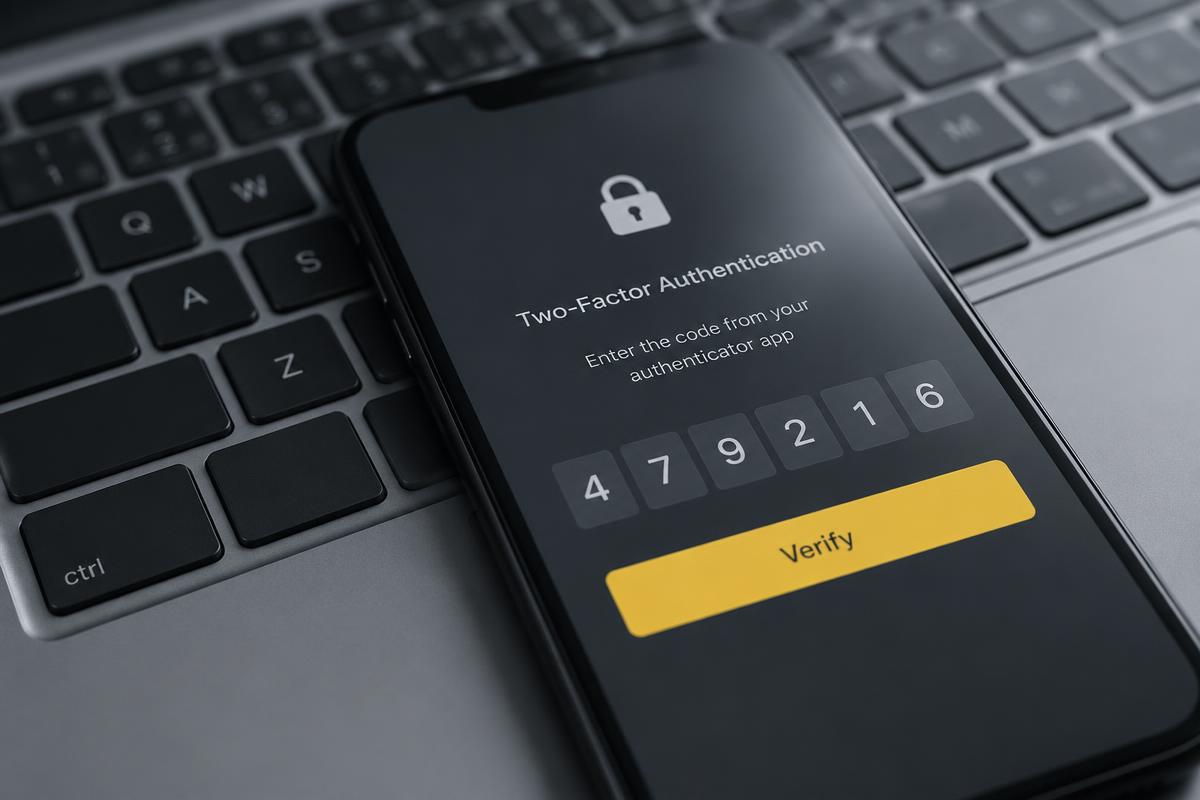
Enable two-factor or multi-factor authentication wherever possible, particularly for email, banking and cloud storage. Prefer an authenticator app or security key when a service offers them, while recognising that any additional factor is generally better than a password alone.
Never share a one-time security code with someone who contacts you unexpectedly. Genuine support staff should not ask you to read out a code intended to approve a login or payment.
How can you avoid dangerous links and downloads?
Treat unexpected links and attachments carefully, even when the message appears to come from someone you know. Their account may have been compromised.
Before clicking:
- Check the sender’s full address, not only the display name
- Consider whether the message and request are expected
- Open the organisation’s official app or type its known address yourself
- Avoid downloads promising free paid software or instant repairs
- Close alarming browser pop-ups rather than calling the number shown
Do not install remote-access software because of an unsolicited call, message or pop-up. If you need technical help, contact a provider you have chosen using details you verified independently.
Why do backups matter?
Prevention reduces risk but cannot remove it completely. A recent backup can protect you from ransomware, accidental deletion, device failure and other data loss.
Keep at least one copy separate from the laptop. This might be encrypted cloud storage or an external drive that is disconnected when the backup finishes. Periodically check that the files can actually be restored; an untested backup is only an assumption.
If you need to make space without deleting important data, use our guide to freeing up PC storage safely.
What should you do if you think you have been scammed?
Act quickly, but do not panic.
- Stop communicating with the suspected scammer.
- Disconnect remote-access software or end the session.
- From a different trusted device, change passwords for affected accounts, starting with email and financial services.
- Contact your bank using the number on your card or its official website if money or card details are involved.
- Tell the relevant service that your account may be compromised.
- Check account activity and continue monitoring it.
- Report fraud or cybercrime through the appropriate official UK channels.
- Arrange a malware check if anything was downloaded or remote access was granted.
Do not rely on the scammer’s instructions for “securing” your account, and never send more money to someone claiming they can recover an earlier payment.
How can you tell whether the laptop is infected?
Possible signs include new pop-ups, browser redirects, unfamiliar programmes, disabled security tools and a sudden unexplained slowdown. These symptoms can have other causes, so use the detailed guide to telling whether a laptop has a virus before drawing conclusions.
If you are worried that a laptop has been compromised, Bark Street Software offers software-focused malware and laptop support and local help in Bolton. Contact us with a brief account of what happened, but do not include passwords, card numbers or other sensitive information in the form.
Frequently asked questions
How can I protect my laptop from malware and scams?
Keep software updated, use unique passwords and multi-factor authentication, verify unexpected requests independently, avoid untrusted downloads and maintain a tested backup.
What should I do if I think I have been scammed?
Stop contact, secure affected accounts from a trusted device and call your bank directly if financial details are involved. Arrange a malware check if you downloaded anything or allowed remote access.
Are password managers safe?
A reputable password manager is generally safer than reusing passwords. Protect it with a strong master password, keep it updated and enable multi-factor authentication.
Do software updates really improve security?
Yes. Many updates fix known security weaknesses. Keeping Windows, browsers and other frequently used software current removes common opportunities for attackers.
Got a system that's holding you back?
Tell us what you're trying to achieve — we reply within one working day.
Start a conversation